
Screenshots and Image Export
Source 2 Viewer copies the 3D view to the clipboard, and saves textures, vector graphics and graphs as images. The examples use files from Deadlock.
Copying the 3D View
- Open a model, map or particle system, such as
models/heroes_staging/haze/haze.vmdl_c, and frame it. - Click the 3D view, then press Esc to clear the selection the click made.
- Press Ctrl+C and paste the image anywhere.
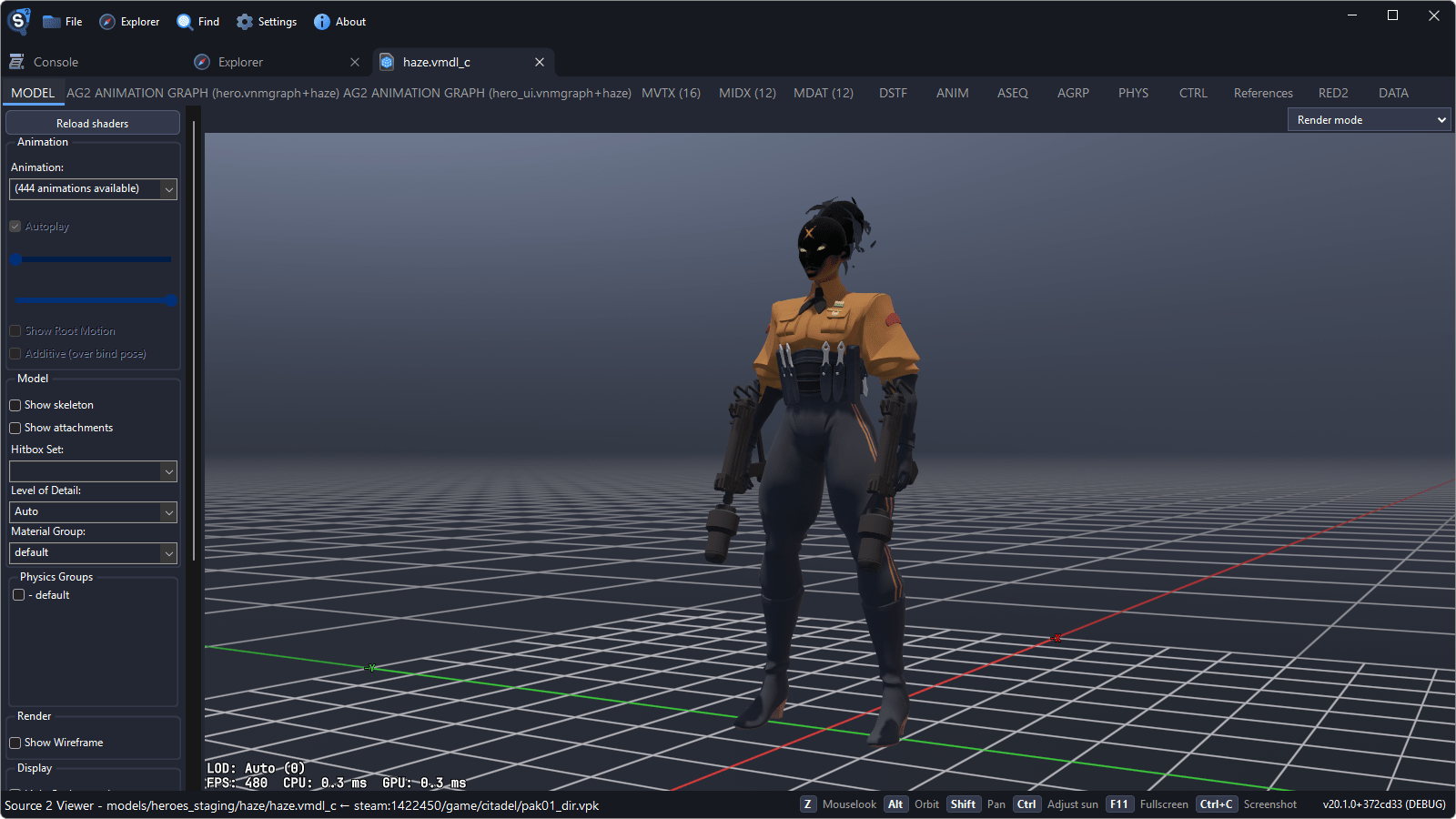
Models are copied on a transparent background. Maps and particle systems are copied as shown, with their background.
The copy is as large as the 3D view. For a larger one, press F11 for full screen before copying.
Setting Up the Shot
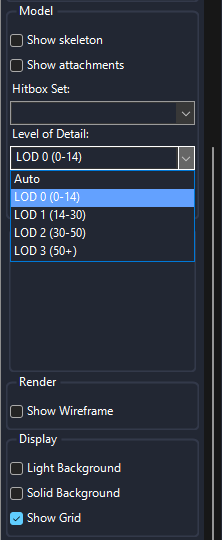
Level of Detail
Set Level of Detail in the sidebar to LOD 0 to keep the most detailed version of the model when it is small in the view.
Backgrounds
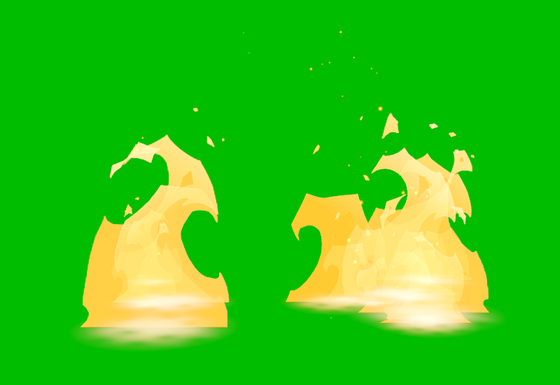
The Display group in the sidebar has Light Background, Solid Background and Show Grid. Solid Background gives a flat magenta, or green with Light Background, which is the way to get a particle effect on a flat color. Pause holds the effect still.

Settings
The Video settings in Settings set Anti-aliasing, Camera FOV, Max texture size and Shadow quality. Camera FOV applies when you go back to the tab. Reopen the file after changing the others.
Maps
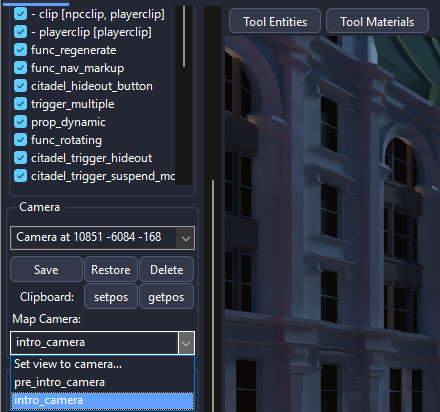
- Turn off Tool Entities above the 3D view to hide the entity markers.
- Save and Restore in the Camera group keep a view to come back to.
- Map Camera moves the view to a camera placed in the map.
- Exposure sets the brightness.
Saving Textures as Images
This example saves Haze's hero card, panorama/images/heroes/haze_card_psd.vtex_c.
Open the texture and pick what to save in Channels. RGBA (Transparent) keeps the transparency.
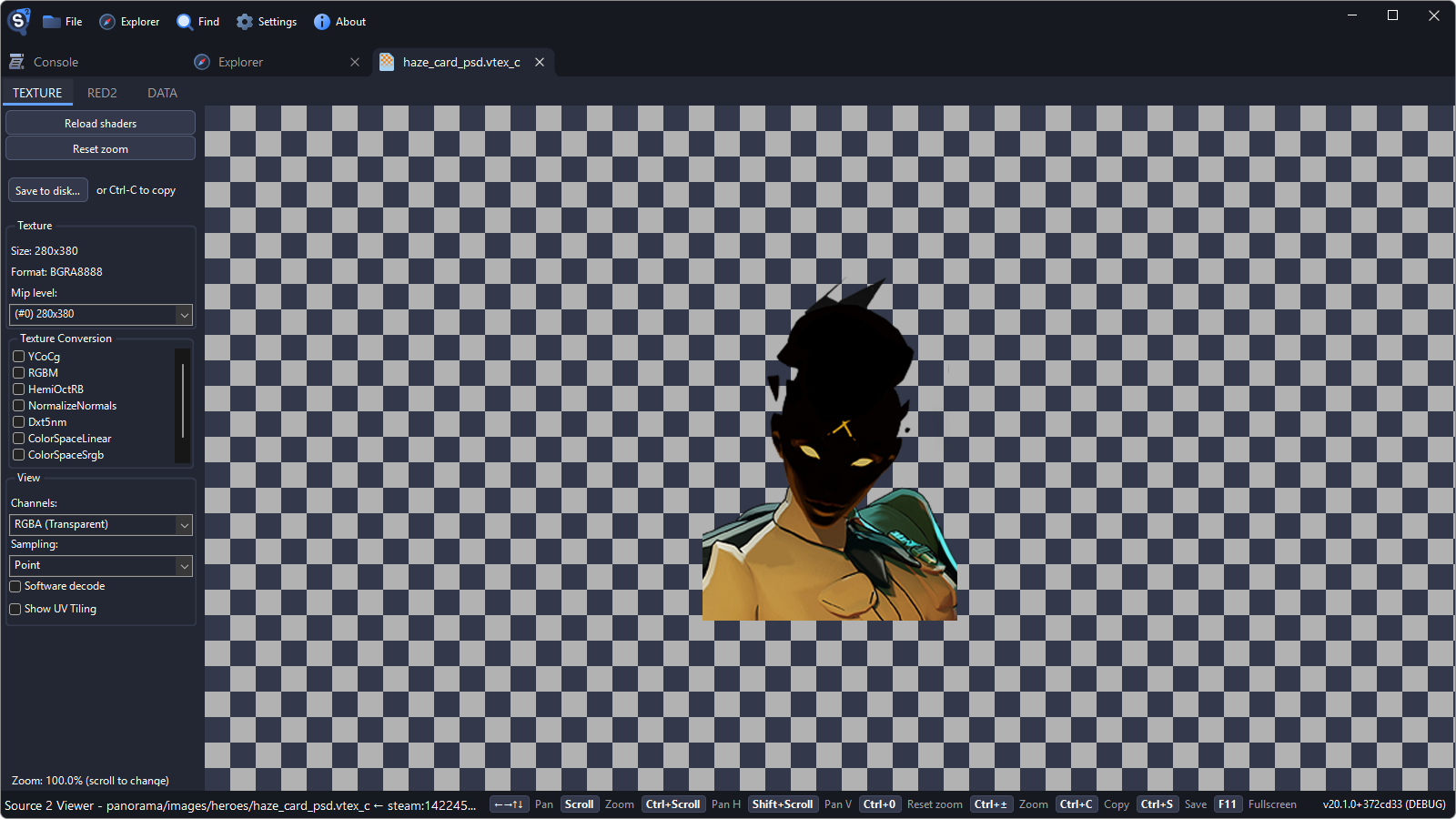

Click Save to disk... or press Ctrl+S.

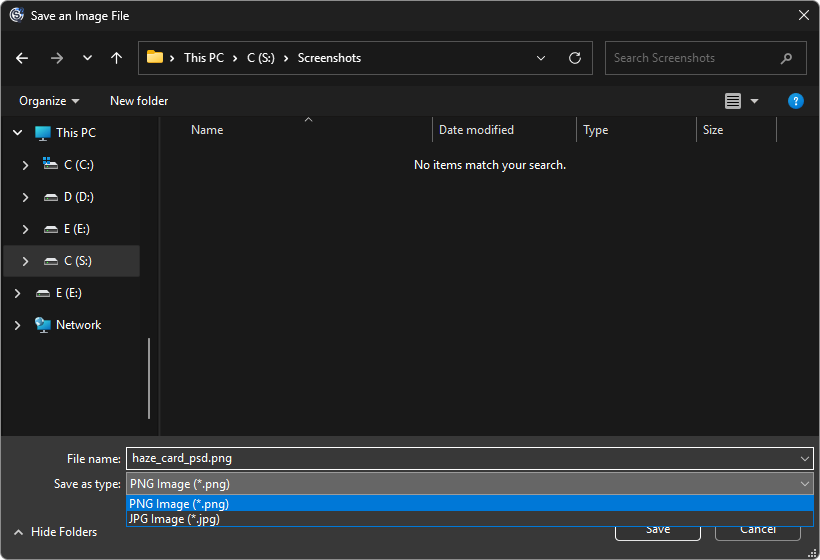
Pick PNG Image or JPG Image, or EXR Image for HDR textures, and click Save.
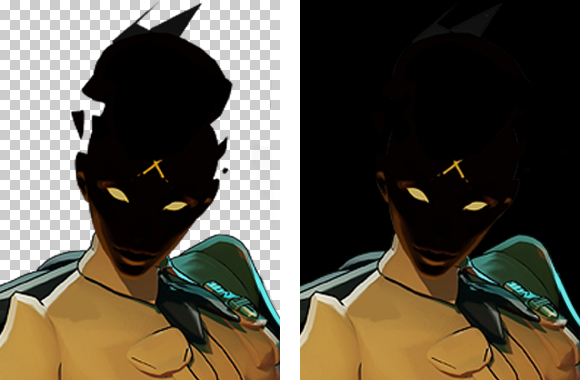
The image is saved at the full size of the texture. JPG has no transparency, so transparent parts turn black:
Exporting Vector Graphics
Panorama vector graphics (.vsvg_c), such as panorama/images/builds/citadel_build_tag_damage.vsvg_c, open in the texture viewer too.
Click Save to disk....
Pick SVG to save the original file, or PNG or JPG with a Resolution.

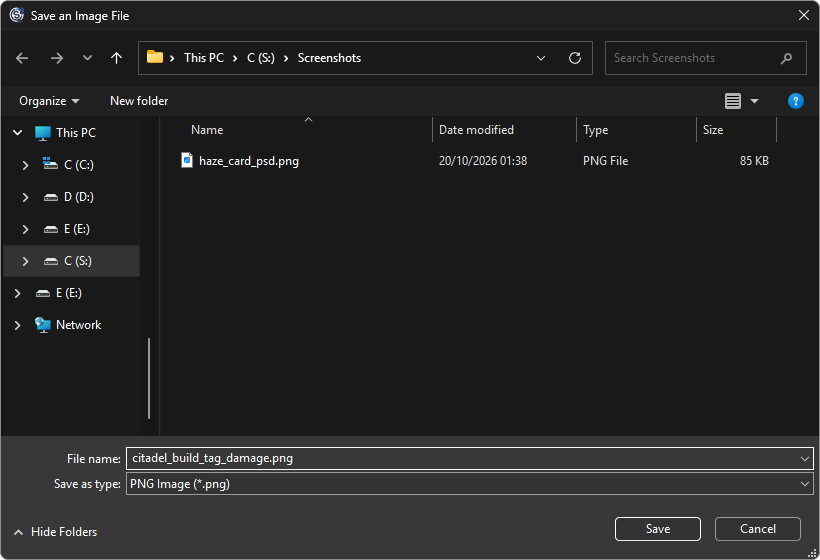
Click Save and choose where to save it.
Saving Graphs
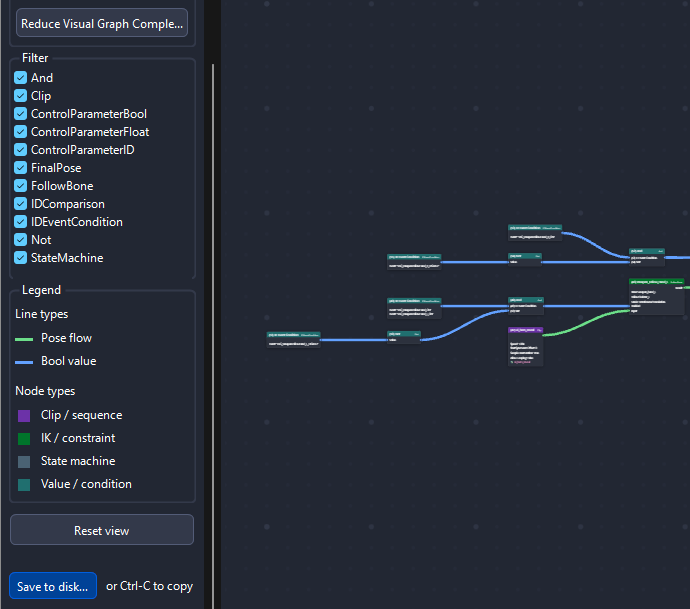
Animation graphs, Pulse graphs and entity I/O graphs have a Save to disk... button in the sidebar too, which saves the whole graph.