
Posing Characters in Blender
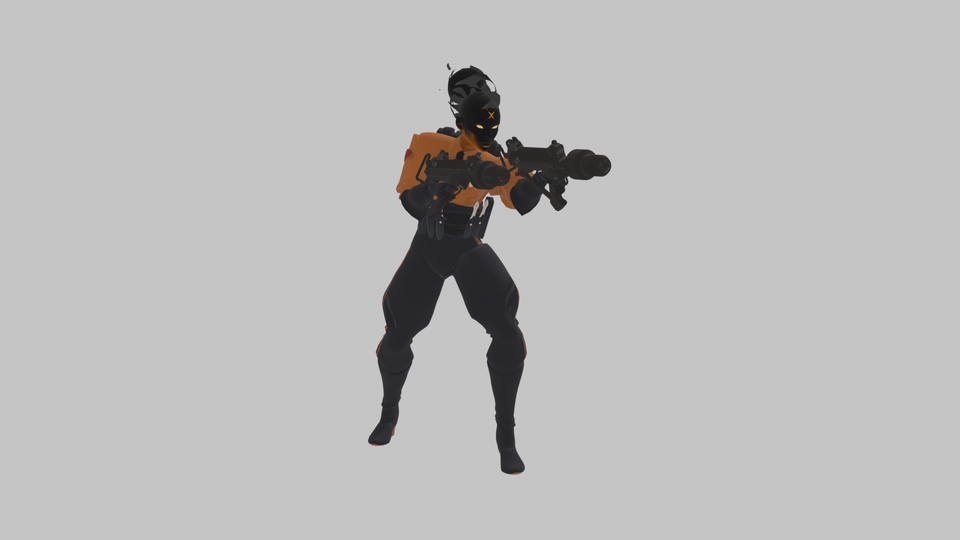
Characters exported to glTF arrive in Blender rigged, with their skeleton and animations. This guide takes the Deadlock hero Haze to a posed render in Blender 5.2. The same steps work for CS2 agents, Dota 2 heroes and Half-Life: Alyx characters, see Finding Models.
Finding the Hero
In the Explorer tab, expand Deadlock and double-click
game/citadel/pak01_dir.vpk.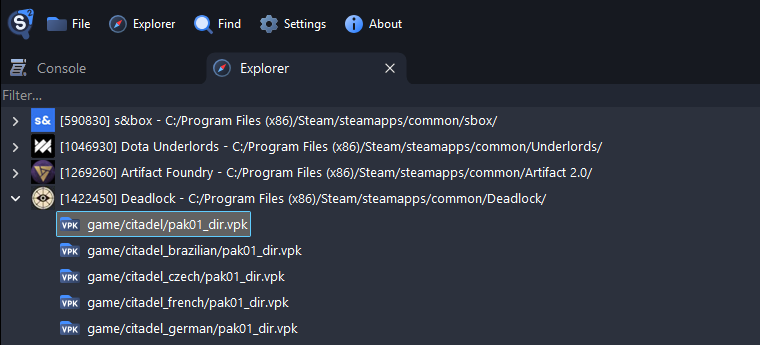
Type
models/heroes_staging/hazeinto the box above the tree and press Enter. For other heroes, see Finding a Hero's Model.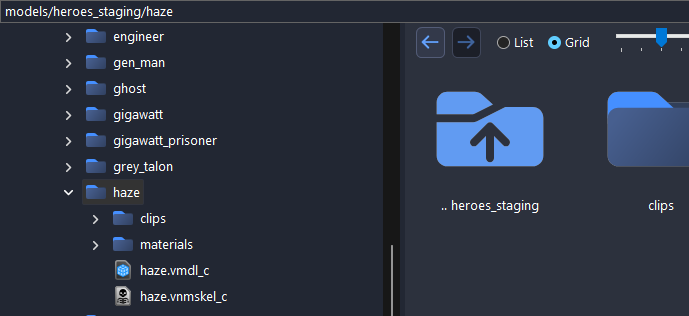
Double-click
haze.vmdl_cto preview her. The Animation list in the sidebar plays her animations and shows their frame rate.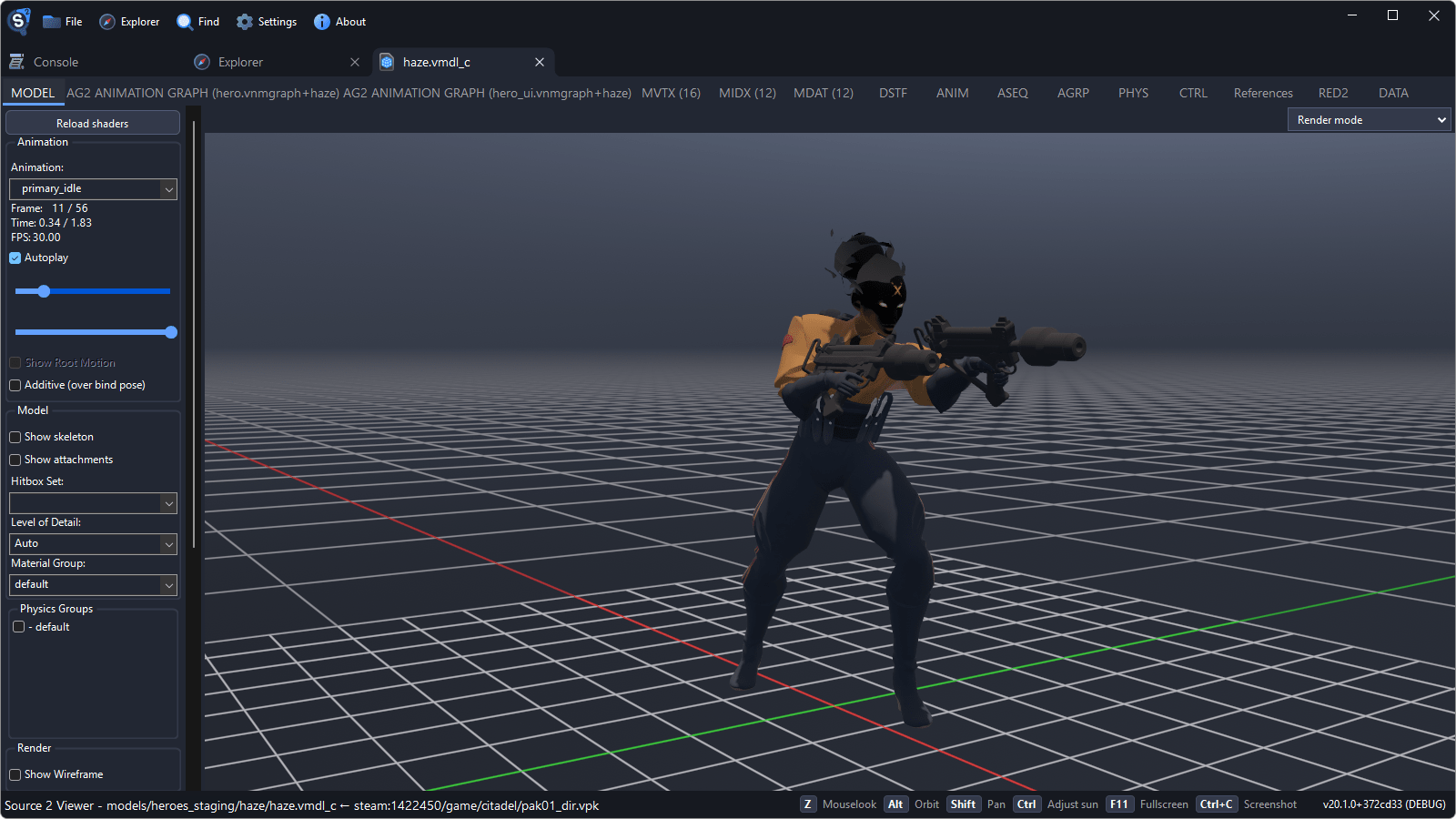
Exporting to glTF
Right-click
haze.vmdl_cand select Decompile & export.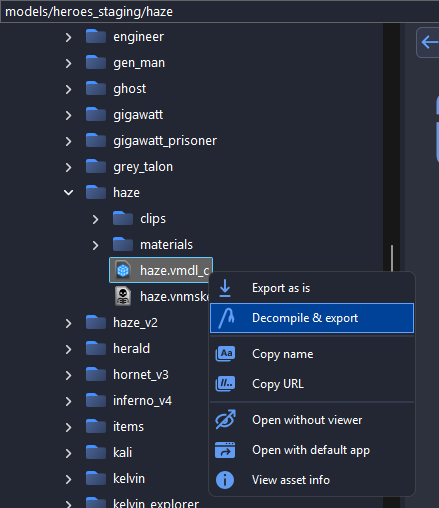
Choose an empty folder, set Save as type to glTF and click Save.
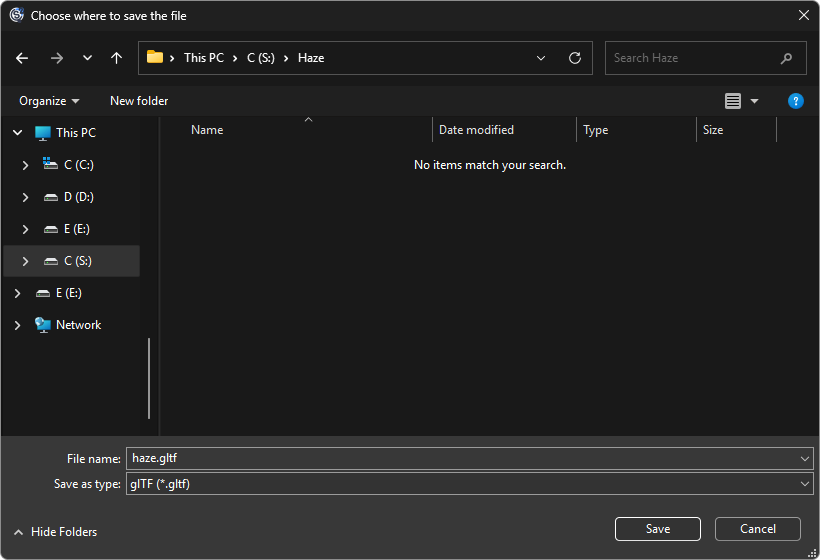
When the window says Export completed, click Close.

Importing into Blender
Preparing the Scene
Most Deadlock animations run at 30 frames per second, and Blender's default is 24. Set the frame rate before importing, as changing it later changes the playback speed.
Delete the default cube. Keep the camera and the light.
In the Output properties (the printer icon), set Frame Rate to 30.
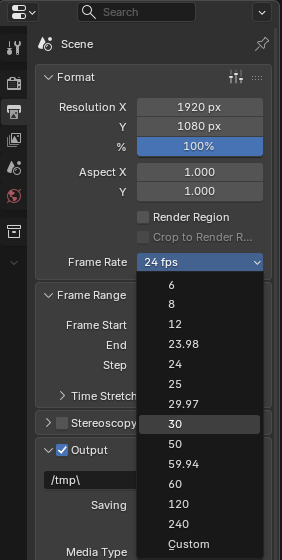
Importing the glTF
Select File > Import > glTF 2.0 (.glb/.gltf).
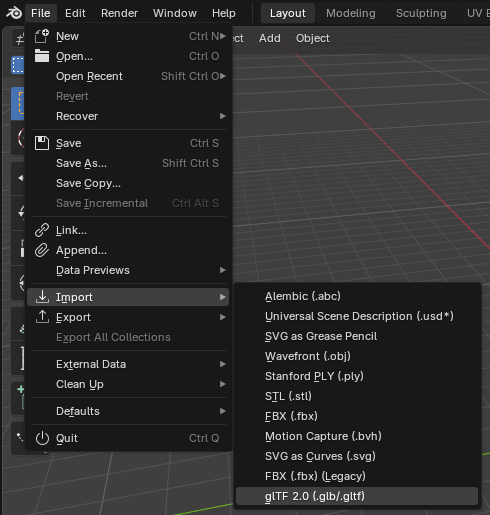
Select
haze.gltf.
Under Bones & Skin, set Bone Shape Scale to 0.3, so the bones do not hide the model.
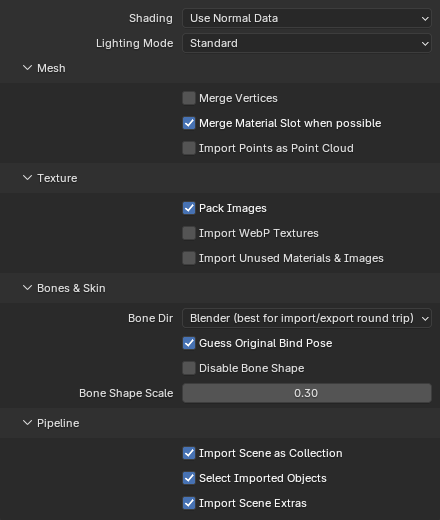
Click Import glTF 2.0.
With the mouse over the viewport, press Numpad . to zoom to her, and press Z and pick Material Preview to see her textures.
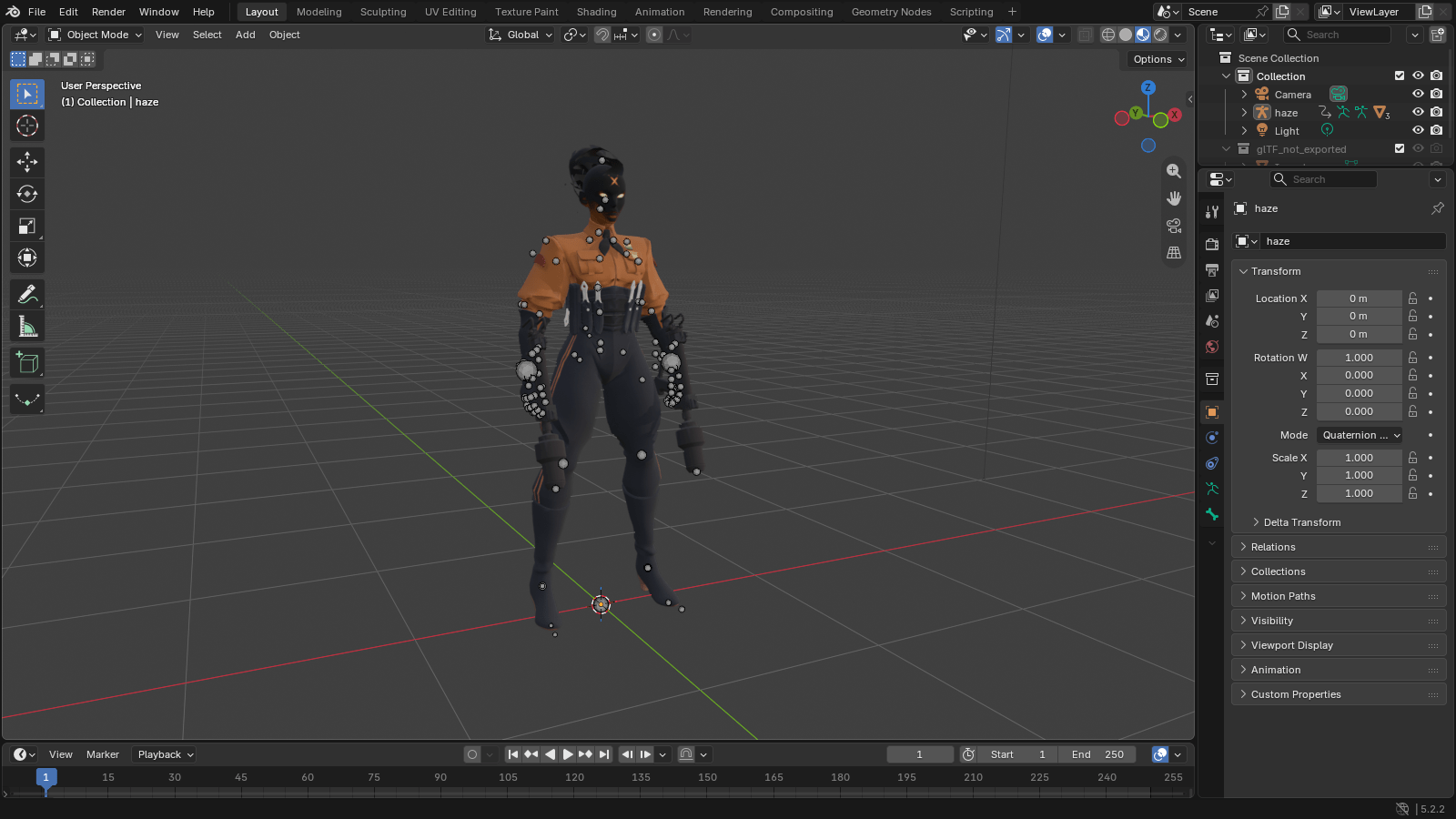
In the Outliner, haze is the armature, with her meshes below it.
Posing the Character
The import leaves the animation
refassigned, which resets the bones whenever the frame changes. Clickhazein the Outliner, open the Object properties (the orange square), expand Animation and click the X next toref.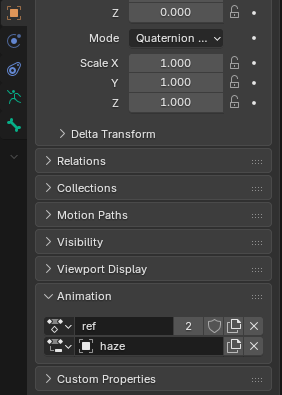
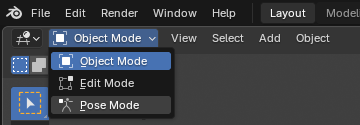
Switch to Pose Mode.
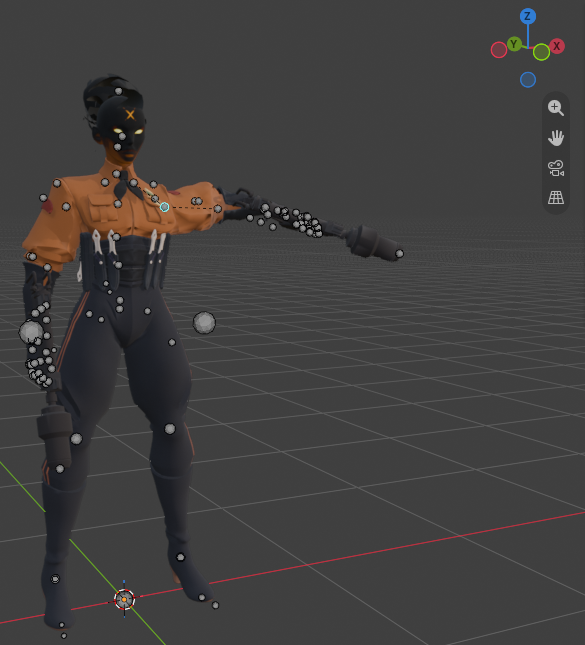
Click a bone, press R and move the mouse to rotate it.
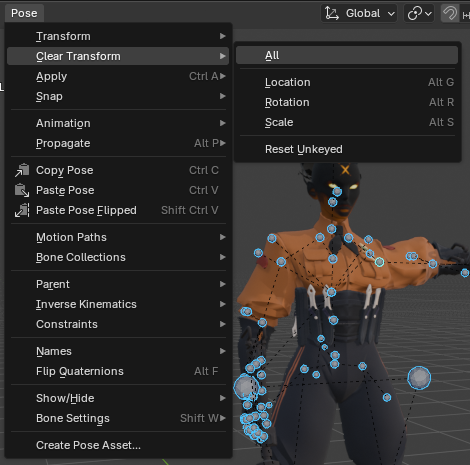
To start over, press A and select Pose > Clear Transform > All.
TIP
To start from a frame of an animation, assign the animation as described below, go to that frame and click the X again.
Playing the Animations
In the Animation panel, click the button at the left of the first row and pick an animation, such as
primary_idle.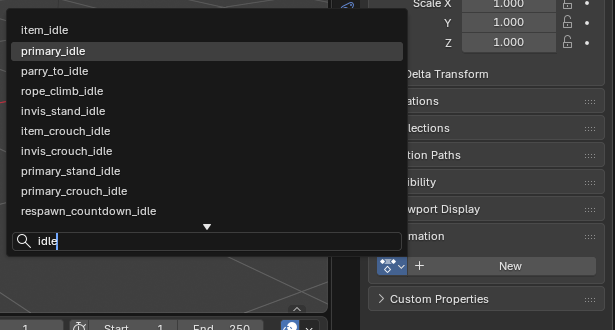
In the Timeline, set Start to
0and End to the animation's last frame, such as55. The orange diamonds mark its keys.
Press Space to play.
Rendering an Image
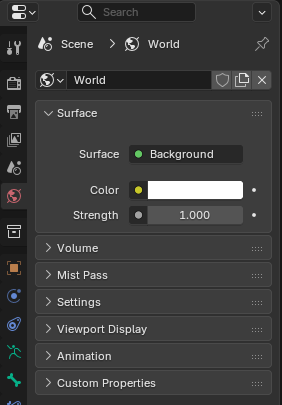
The default world is nearly black. In the World properties (the red globe), set Color to white.
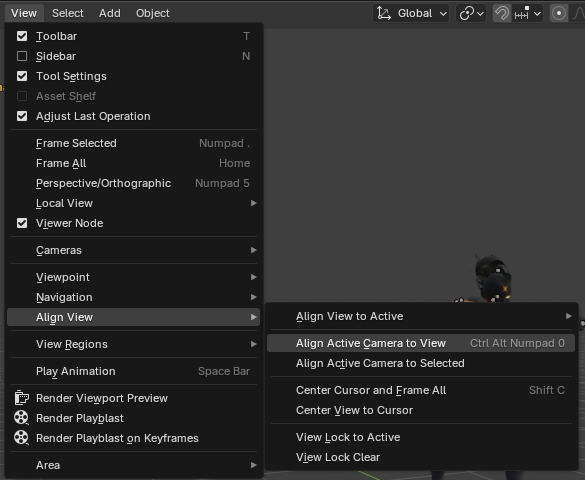
Frame Haze in the viewport, then select View > Align View > Align Active Camera to View.
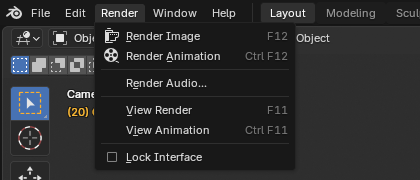
Select Render > Render Image (F12), and save it with Image > Save As.