

Exporting Maps
Source 2 Viewer can export maps in two ways: as glTF for use in 3D software like Blender, or decompiled to .vmap for editing in Hammer Editor.
Finding Maps
Maps are stored as .vmap_c files inside VPK archives or as standalone VPK files.
- Official maps: Each map is stored as its own VPK file (e.g.,
de_dust2.vpk) in the game'smaps/directory. Inside the VPK, the map data is atmaps/<mapname>.vmap_calongside amaps/<mapname>/folder containing world nodes, entities, cubemaps, and other dependencies. - Workshop maps: Stored as individual VPK files in Steam's workshop directory, which can be opened directly with Source 2 Viewer
WARNING
Some games include map files with a _vanity suffix (e.g., de_dust2_vanity.vmap_c). These are truncated versions used for main menu backgrounds. Use the version without the suffix instead.
Previewing Maps
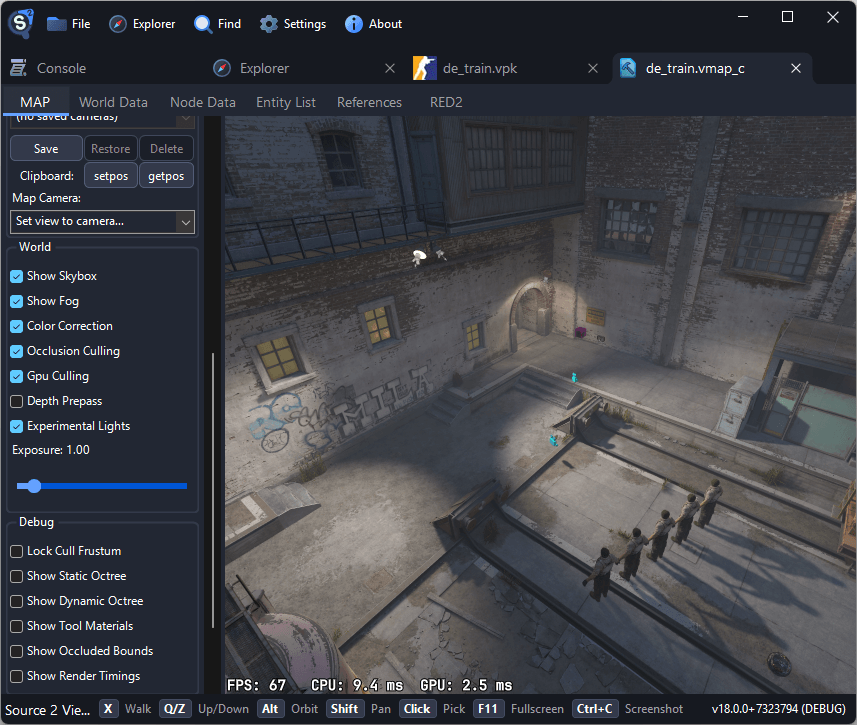
Double-click a .vmap_c file to open the 3D map viewer. The viewer renders the full map with textures, props, and lighting.
The map viewer uses free-flight camera by default. Move the mouse to look around, and use WASD to move. Hold Alt+drag to orbit around a point, Shift+drag to pan, and scroll to adjust movement speed.
Press X to toggle walk mode, which enables FPS-style movement with collision and gravity. Click on objects in the scene to select and inspect their entity properties.
Two toggles control how the map is culled. PVS Culling (shown on maps with precomputed visibility) hides what that visibility data says cannot be seen from the camera, and Visibility Boxes (shown on maps that have info_visibility_box entities) applies the map's culling boxes. Turn them off to see everything at once.
Export to glTF
Use this workflow when you want to view or render the map in Blender or other 3D software.
- Open the map's VPK file in Source 2 Viewer
- Navigate to the
.vmap_cfile - Right-click and select Decompile & export
- Choose glTF as the format (GLB is also available but has a 2 GB size limit)
- Select a save location and click Save
The export includes:
- Map geometry (brushes and meshes)
- Textures (exported as PNG files alongside the glTF)
- Props and models placed in the map
- Basic material information
TIP
Map exports can be large. For a typical CS2 competitive map, expect the export to produce hundreds of texture files alongside the glTF.
Importing into Blender
- Open Blender
- Go to File → Import → glTF 2.0 (.gltf/.glb)
- Select the exported map file
- The map imports as a single scene with materials and textures applied
Decompile to .vmap
Use this workflow when you want to open the map in Hammer Editor for editing or study.
- Open the map file in Source 2 Viewer
- Right-click the
.vmap_cfile and select Decompile & export - Choose vmap as the file type
- Save to your Workshop Tools addon content directory (see folder structure below)
- Launch Hammer Editor through Workshop Tools and open the decompiled
.vmap
Folder Structure
The exported .vmap file and its dependency folder must be placed correctly inside your addon content directory. Your folder structure should look like this:
Counter-Strike Global Offensive/content/csgo_addons/your_addon/
└── maps/
    ├── cs_office.vmap
    └── cs_office/
        └── <map dependencies>
The .vmap file sits right next to its matching folder, both inside maps/ in your addon content. The file is saved as <map>_d.vmap; very large maps are split into additional _d_autosplit_partN.vmap files, which the main map references.
WARNING
If a maps/ folder was exported alongside your .vmap file, you may need to move the .vmap file inside that maps/ folder. Exporting outside addon content may not work as expected.
DANGER
Do not use a decompiled map as your first mapping project if you are new to mapping! Decompiled output is messy and does not resemble how real .vmap files are made. Learn the basics of Hammer Editor first.
WARNING
Map decompilation is not a perfect round-trip. The output will be imperfect:
- Models will be merged by material across the map
- Parts of the skybox mesh might be missing
- Collision will be merged into one mesh using special materials
- The map will lack lightmap resolution volumes
- Hammer meshes come back mostly triangulated (adjacent coplanar triangles are merged into quads where possible)
The decompiled map is useful for learning and reference, but should not be expected to recompile identically.
Prerequisites for Hammer
To open decompiled maps in Hammer, you need the game's Workshop Tools installed:
- In Steam, right-click the game → Properties → DLC
- Enable and install the Workshop Tools DLC (available for CS2, Half-Life: Alyx, etc.)
- Launch the Workshop Tools and create an addon if you haven't already
- Save your decompiled
.vmapinto the addon'smaps/folder
Batch Map Export
For exporting multiple maps or automating the process, use the command-line utility:
Source2Viewer-CLI -i "maps/de_dust2.vpk" -o "exported/" -dSee the command-line utility guide for more options.
Limitations
- glTF export includes geometry, textures, props and the sun, but not baked lighting, point or spot lights, game logic, or navigation meshes
- vmap decompilation may produce maps that don't compile perfectly due to data loss in the decompilation process
- Very large maps may take significant time and memory to export