

Exporting Models
Source 2 Viewer can export 3D models from any Source 2 game to the standard glTF 2.0 format, which can be imported into Blender, Maya, 3ds Max, and other 3D software.
Finding Models
Models are stored as .vmdl_c files inside VPK archives. In CS2, most assets are inside pak01_dir.vpk. Common locations:
| Game | Path | Examples |
|---|---|---|
| Counter-Strike 2 | weapons/models/ | Weapon viewmodels and worldmodels |
| Counter-Strike 2 | agents/models/ | Player and agent models |
| Counter-Strike 2 | models/ | Props, vehicles, foliage, and other world models |
| Dota 2 | models/heroes/ | Hero models with cosmetics |
| Deadlock | models/heroes/ | Hero models |
| Half-Life: Alyx | models/characters/ | Characters and NPCs |
Use Ctrl+F to search for files by name.
Deadlock hero models
Deadlock hero models are .vmdl_c files under models/heroes/. Source 2 Viewer detects Deadlock automatically, so you can find its pak01_dir.vpk in the Explorer and browse to that folder from there. Double-click a model to preview it along with its animations. To use a hero in Blender, right-click the model and select Decompile & export, then choose glTF as described in Exporting to glTF.
Previewing Models
Double-click a .vmdl_c file to open the 3D model viewer.
Controls:
- Alt + mouse drag to orbit the camera around the model
- Shift + mouse drag to pan the camera
- Scroll wheel to zoom in/out
- Ctrl + mouse drag to adjust the sun direction
The viewer shows the model with materials and textures applied. Use the toolbar to toggle wireframe, bounding boxes, and other debug overlays.
If the model has animations, they appear in a dropdown in the toolbar. Select an animation to preview playback. Relevant keyboard shortcuts are shown at the bottom of the viewer.
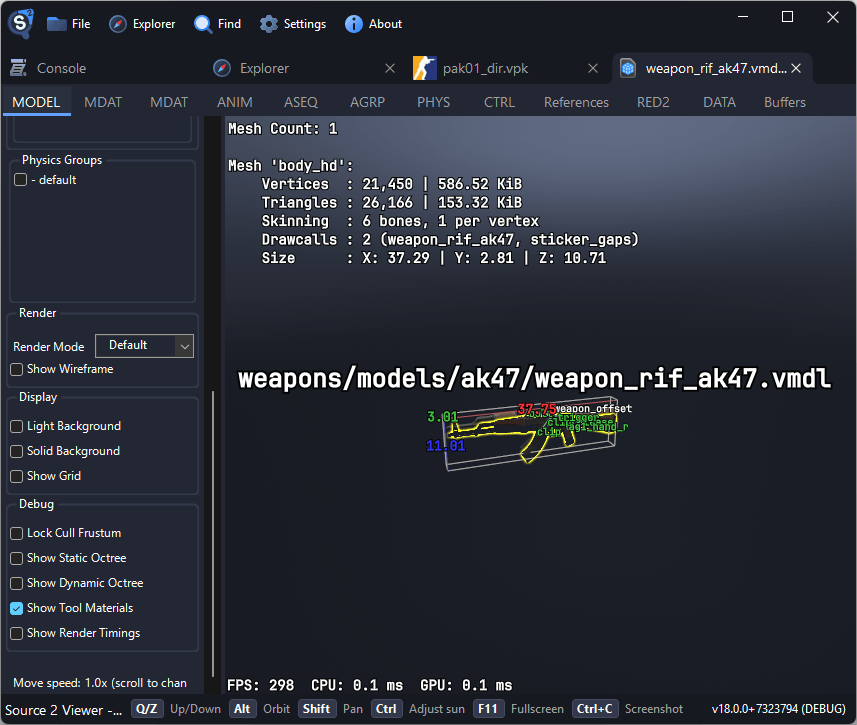
Exporting to glTF
- Open a
.vmdl_cfile in the viewer (or locate it in the file tree) - Right-click the file (or its tab) and select Decompile & export
- Choose a save location and filename
- Select the export format: glTF or GLB
- Click Save
The output format can be chosen in the save dialog. For 3D use, choose glTF or GLB. You can also export to the decompiled .vmdl source format.
The glTF export includes geometry, materials, textures, and the skeleton (if present).
glTF vs GLB
| Format | Description | Best for |
|---|---|---|
| glTF | Separate .gltf, .bin, and PNG texture files | Recommended for most use cases |
| GLB | Single binary file, with PNG texture files next to it | Has a 2 GB size limit in the spec |
WARNING
GLB files are limited to 2 GB by the glTF spec. Use glTF instead, especially for large models or map exports.
Importing into Blender
- Open Blender
- Go to File → Import → glTF 2.0 (.gltf/.glb)
- Select the exported file
- The model imports with materials and textures already applied
The imported model includes the full mesh, UV maps, material assignments, and textures. If the model has a skeleton, it's imported as an Armature.
Textures that are self-illuminated in the game export as emissive textures, so they glow in glTF viewers and Blender.
Bones look like big spheres in Blender
If the armature is covered in large blobs, change these options in the import dialog under Bones & Skin:
- Enable Disable Bone Shape, or
- Lower Bone Shape Scale; the right value depends on the model, roughly 0.2 to 0.75, or
- Set Bone Dir to Temperance, which points bones at their children and draws no spheres. Animations still play correctly.
Blender remembers the last used import settings, and they can be saved as an operator preset. After import, the armature's Viewport Display can also be set to Stick or Wire.
glTF joints have no length or direction, so Blender guesses them. The default Bone Dir points each bone along its local +Y axis, while Source 2 bones run along local X, and draws every bone as a sphere sized at 5% of the armature's smallest dimension. IK target, root motion, cloth and helper bones get long guessed tails that stretch the armature, which makes all the spheres large. A glTF file cannot choose import options, so this has to be changed in Blender.
Exporting Animations
Models with animations export them automatically when using the GUI.
Additive animations are exported as delta tracks by default. Use --gltf_compose_additive on the command line to compose them over the bind pose instead.
Animation keys that linear interpolation reproduces within a small tolerance are dropped. Use --gltf_keep_all_keyframes on the command line to write a key for every frame.
For batch animation export via the command line:
Source2Viewer-CLI -i "model.vmdl_c" -o "output.gltf" -d \
    --gltf_export_format gltf \
    --gltf_export_animations \
    --gltf_animation_list "idle,walk,run"
See the command-line utility guide for more options.