

Exporting Sounds
Source 2 Viewer can play and export audio files from Source 2 games. Sound files are decompiled back to WAV or MP3 format.
Finding Sounds
- Sound files are
.vsnd_cfiles, typically insounds/orsound/folders - Common subfolders:
sounds/weapons/for weapon firing, reload, and handling soundssounds/vo/orsounds/voice/for voice lines and dialoguesounds/music/for music tracks and stingerssounds/ui/for interface and menu soundssounds/ambient/for environmental and ambient sounds
Audio Player
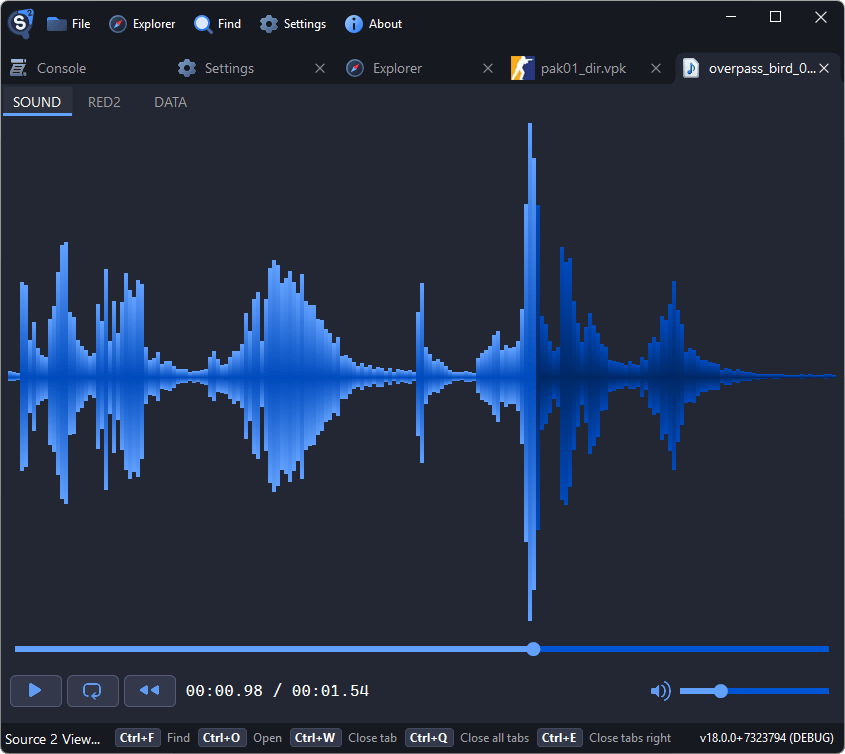
Double-click a .vsnd_c file to open the built-in audio player. It shows:
- A waveform visualization of the audio
- Play/pause, rewind, and loop controls
- Volume slider
- Duration and current position
Exporting Sounds
- Open a
.vsnd_cfile or locate it in the file tree - Right-click and select Decompile & Export
- The file is saved as WAV or MP3
For batch export of an entire sound folder:
- Right-click the
sounds/folder → Decompile & Export - Or use the CLI:
Source2Viewer-CLI -i "pak01_dir.vpk" -o "exported/" -d \
    --vpk_extensions "vsnd_c" \
    --vpk_filepath "sounds/"
TIP
Source 2 games store sounds in a compiled format internally. The decompiled output is standard WAV or MP3 depending on the original source format.
Source 2 Viewer only decompiles. To turn an MP3 or WAV file into a .vsnd_c, compile it with Valve's Workshop Tools (the resource compiler) for that game.
Sound Events
Source 2 uses sound event files (.vsndevts_c) to define how sounds are played in-game (volume, pitch, randomization, etc.). These can be viewed and decompiled as text files in Source 2 Viewer, which is useful for understanding how the game references its audio assets.